
To find which ad signed a case, start at the retainer and walk it backward through four records: the consult, the intake record, the first call or form, and the click or listing behind it. The ad or listing at the end of that walk gets the credit, and a case with a gap in the chain goes in Unknown until you fix that station.
Run this sheet on one recent case with intake and your ads manager.
Pick One Case Signed in the Last 30 Days
Google Ads keeps the click ID from an ad click for 90 days. A signed case can only be sent back to the ad that started it if you upload it inside that window (Google Ads Help). A recent case gives you room to finish the trace and still use what you find.
Choose a case from your main practice area, and one that came in by phone if you have it. A call carries no click ID by itself. If you use dynamic tracking numbers on your site, a phone case tests whether those numbers still tie the caller back to the visit.
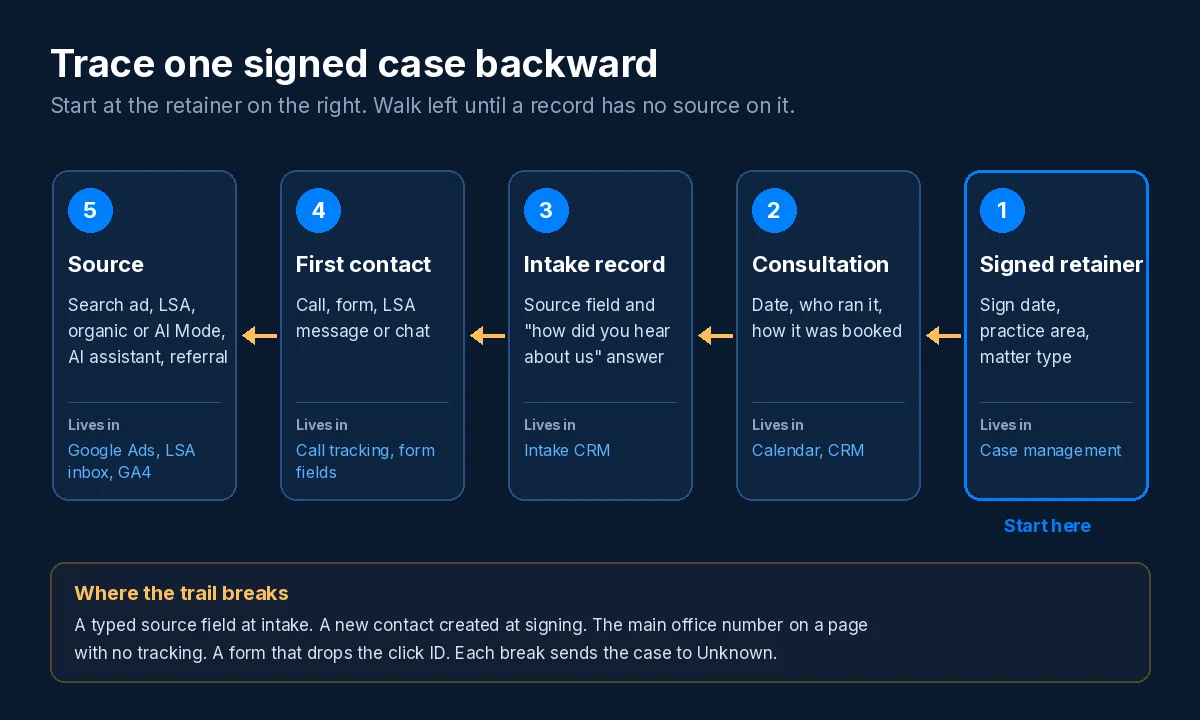
The Trace Sheet, Station by Station
Work from station 1 to station 5 and copy what each record says. Leave a line blank if the record does not say it. The first blank line marks your break, so note it and keep going to see how much of the rest holds.
-
1The Signed Retainer
Look in: your case management system, or wherever engagement letters get logged.
Sign date
Practice area and matter type
Linked to the original inquiry record? Yes / No
Breaks when the matter was opened as a new contact at signing, with no link back to the inquiry that came first.
Fix: open every matter from the existing inquiry record so the source travels with the case.
-
2The Consultation
Look in: the calendar entry and the CRM activity for the consult.
Consult date
Booked by: intake, attorney or online scheduler
Same phone and email as the first inquiry? Yes / No
Breaks when the prospect booked from a spouse’s phone or a second email address and the CRM made a duplicate contact.
Fix: search by name and both numbers before creating a contact, and merge duplicates the day they show up.
-
3The Intake Record
Look in: the intake form or CRM record your team fills in on the first call.
Source field value
Filled in by the system or by a person? System / Person
Answer to “How did you hear about us?”
Fits a practice area you take? Yes / No
Breaks when the source is a free-text box intake fills in from memory, or a pick list where “Google” covers ads, LSA, Maps and organic alike.
Fix: let the call tracking or form fill the source field, and keep the caller’s answer in a separate field. Our guide to qualified case leads covers the screening questions that belong on this record too.
-
4The First Contact
Look in: call tracking logs, form submissions and the Local Services Ads inbox.
Contact type: call, form, LSA call, LSA message or chat
Number dialed or page the form sat on
Time of your first reply
Breaks when the caller dialed a number with no tracking behind it, such as the main office line on a page where the tracking script does not run. A form that throws away the click ID breaks it too.
Fix by contact type:
- Calls from a Search ad. Note which campaign the call came from using whatever call tracking you have set up.
- Calls from your website. If you use dynamic tracking numbers on your site, make sure the number on the page is assigned to each visit automatically.
- Forms. When someone clicks your ad, auto-tagging adds a gclid parameter (Google’s click ID) to the page address (Google Ads Help). Save it in a hidden form field so it lands on the intake record.
The reply time on this line also tells you whether the case nearly slipped. Our post on speed to lead for law firms explains why the first callback matters.
-
5The Source
Look in: Google Ads, the LSA inbox and GA4 acquisition reports.
Channel
Campaign or listing
Keyword, paid search only
Landing page
Breaks when auto-tagging is off, or a redirect drops the gclid before the landing page loads. Google says the click ID has to reach the final landing page to track conversions (Google Ads Help).
Fix: check auto-tagging in Google Ads under Admin, then Account settings. For organic cases, use the landing page to tell practice areas apart.
Where AI Answers Show Up in the Trail
A prospect who asks ChatGPT for a lawyer and clicks your link lands in GA4’s AI Assistant channel. Google defines it as visits from sources like ChatGPT and Gemini, and it leaves out Google’s AI Overviews and AI Mode (Analytics Help).
Clicks from AI Overviews and AI Mode count as Organic Search in GA4 (Analytics Help). A case that started in AI Mode will trace back to organic, with no AI label on it.
An AI answer can also put your firm’s name in front of a prospect with no click at all. They search your name later or call from your Business Profile, and only the intake question at station 3 can catch it. Give that question answer choices like “ChatGPT or another AI app” and “Google’s AI answer at the top of the results.”
If your intake sheets never show an AI source, check whether those tools name your firm at all. Our guide to why a law firm is missing from ChatGPT shows the page rewrites that help.
Send Each Signed Case Back to Google Ads
Google calls this an offline conversion import. You save the click ID with the lead, then give it back to Google Ads when that person converts offline, for example by signing a contract (Google Ads Help).
For new setups, Google recommends enhanced conversions for leads. It adds hashed contact details such as email addresses to the upload and matches them to what the person typed on your form and to signed-in Google accounts that engaged with your ad (Google Ads Help).
| Google’s rule | What it means for a firm |
|---|---|
| Uploads with a click ID work up to 90 days after the click. Uploads with contact details for enhanced conversions work up to 63 days (FAQ). | If a case signs after day 90, Google says to upload an earlier step that happened inside the window. For a firm, that step is the held consultation or an earlier intake stage. |
| Create a separate conversion action for each stage, such as qualified lead and converted lead. You usually bid toward one stage (FAQ). | Set up qualified inquiry, consult held and retainer signed as three actions. Pick the one stage your bidding should chase. |
| Google recommends uploading at least daily. A CRM is not required, and Google says a Google spreadsheet works (FAQ). | A shared sheet that intake updates each morning is enough to start. |
Uploading client contact details, even hashed, and recording calls both raise consent and confidentiality questions for a law firm. Google tells advertisers to get consent where the law or its policies require it (Google Ads Help).
When we run Google Ads for a firm, we tag Search and Local Services Ads apart from the first contact through to the signed retainer. Then we report cost per signed case for each channel.
Give Local Services Ads Leads Their Own Row
LSA leads skip your website, so no click ID or form field follows them. Google says a valid LSA lead can be a phone call, a text or email from the customer, or a booking request (Local Services Help).
Google’s LSA reporting dashboard shows spend and lead counts by channel, including calls, messages and bookings (Local Services Help). Match each charged lead to the matter in your CRM by name and phone so the two lists agree case by case.
Wait before you count. Google reassesses charged leads over 30 days and credits ones it finds poor quality, duplicate or invalid. Follow-up calls from the same number within 15 days are not charged again (Local Services Help).
Reconcile each month after those 30 days pass. More on how we run LSA sits on our law firm marketing page.
Turn a Month of Trace Sheets Into Cost per Signed Case
Once each signed case has a source, divide what each channel cost by the cases it signed. The month below is made up to show the math.
| Channel | Spend or lead charges | Signed cases traced | Cost per signed case |
|---|---|---|---|
| Google Search ads | $9,000 | 3 | $9,000 ÷ 3 = $3,000 |
| Local Services Ads | $4,000 | 2 | $4,000 ÷ 2 = $2,000 |
| Organic, including AI Mode | No media cost | 1 | Not comparable |
| Unknown | None | 2 | Fix the stations first |
Example only. The figures are invented to show the math. They are not Ostmen client data or a benchmark.
Read the Unknown row first. If it is your biggest row, fix the station where most trails broke before you move any budget. Once it shrinks, set spend by practice area with the steps in our law firm Google Ads budget guide.
Trace One Case With Us
Bring one signed case to a strategy call. We will walk it back with you station by station and show you where the source drops off.
Book a Strategy CallSources, read November 16, 2026. Google Ads Help: About offline conversion imports. Offline conversion imports FAQs. About auto-tagging. Local Services Help: How leads work. Analytics Help: Default channel group.

Brock Anderson is the founder of Ostmen Marketing. He runs Google Ads, Local Services Ads and AI search visibility work for law firms and service businesses, and judges every channel by cost per signed case or booked job.